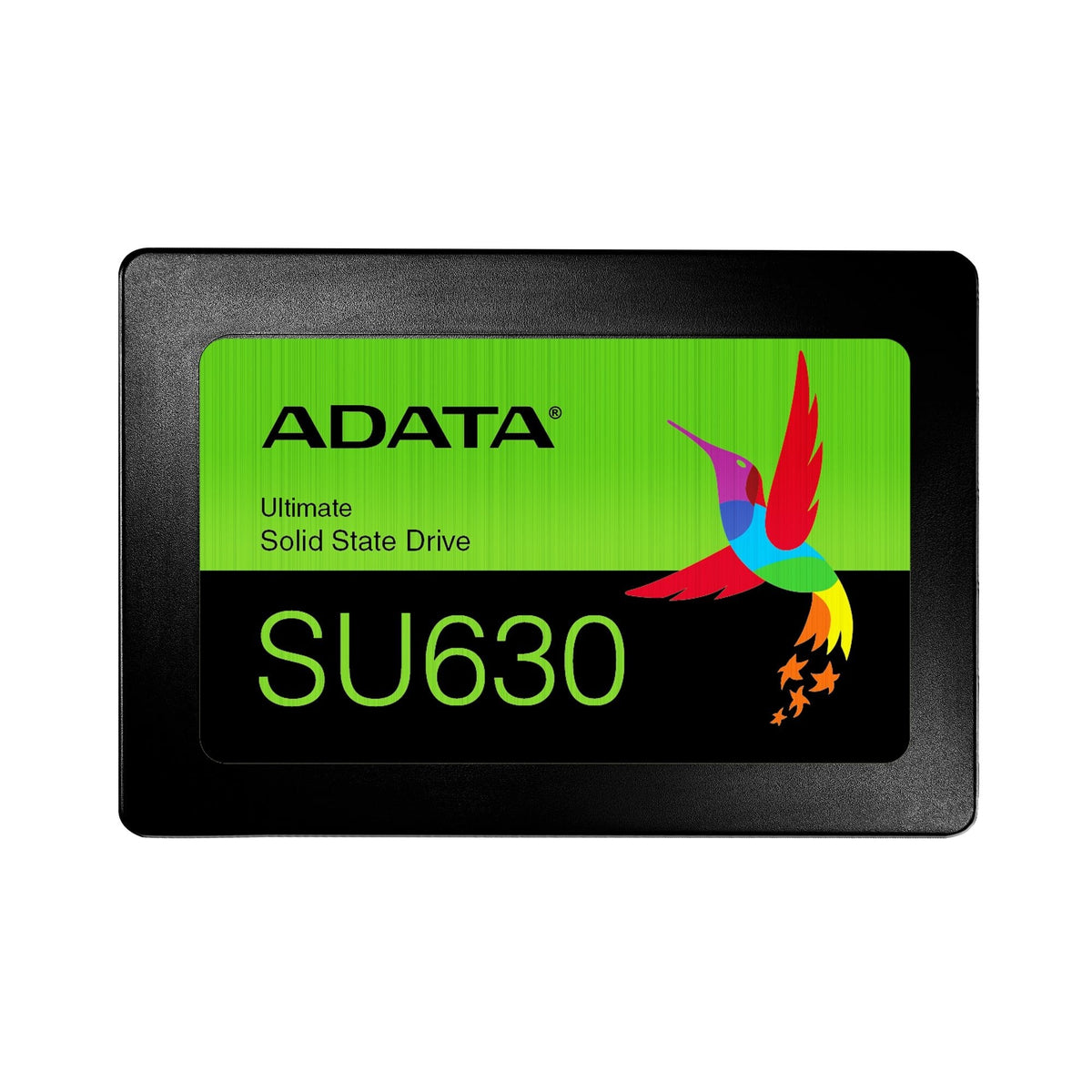
Replacing the drive in an old laptop is the single upgrade with the best return per euro. It is also the one where people most often buy the wrong part, because two drives that look identical in a photograph fit two different slots.
This page is about the decision that has to happen before you buy: which slot does your laptop actually have.
Two shapes, three standards
Laptop storage comes in two physical formats:
- 2.5-inch SATA — the classic rectangular drive, roughly the size of a small phone. Fits older laptops and most desktops.
- M.2 — a thin stick that lies flat on the board. Found in anything from the last seven or eight years.
The complication: M.2 is a shape, not a standard. An M.2 slot can be SATA or NVMe, and a drive of the wrong type may physically fit but not appear in the system at all. That is the trap.
So the sequence is: open the laptop, look at the slot, and identify it before ordering anything. Not the other way round.
How to identify your slot
- A 2.5-inch bay is obvious: a metal cradle with a rectangular drive and two cables. Buy a 2.5-inch SATA SSD and you are done.
- An M.2 slot is a thin connector with a notch. Count the pins and note where the notch sits: drives key differently, and a B-key drive will not work in an M-key slot.
- Check the manual or the model number on the manufacturer's site. It is faster than guessing and it is definitive.
If your laptop has both an empty M.2 slot and a 2.5-inch bay, keep the old drive as secondary storage and put the system on the new one. That is the best outcome and it costs nothing extra.
The three drives we stock
| Model | Price | Class | What you should know | Stock |
|---|---|---|---|---|
| ADATA Drive SSD 480GB Ultimate SU630 Qlc | 90,99 € | 480 GB · SATA 2.5-inch | The cheap revival for an old laptop with a 2.5-inch bay. | 7 in stock |
| Kingston Drive SSD A400 2.5 480GB SATA III TLC SA400S37/480G | 111,99 € | 480 GB · SATA 2.5-inch | Same class, better-known controller. Costs about 21 EUR more than the ADATA. | 25 in stock |
| Kingston Drive SSD 1TB NV3 M.2 2280 PCIE 4.0 NVMe SNV3S/1000G | 179,99 € | 1 TB · NVMe M.2 | Needs an NVMe-capable M.2 slot. Double the capacity and far faster. | 25 in stock |

ADATA Drive SSD 480GB Ultimate SU630 Qlc
90,99 €
480 GB · SATA 2.5-inch | 7 in stock | 2-year EU warranty | 14-day returns

Kingston Drive SSD A400 2.5 480GB SATA III TLC SA400S37/480G
111,99 €
480 GB · SATA 2.5-inch | 25 in stock | 2-year EU warranty | 14-day returns

Kingston Drive SSD 1TB NV3 M.2 2280 PCIE 4.0 NVMe SNV3S/1000G
179,99 €
1 TB · NVMe M.2 | 25 in stock | 2-year EU warranty | 14-day returns
SATA is not slow in practice
A SATA SSD delivers roughly 500–550 MB/s. An NVMe drive can reach several times that. On paper the difference looks decisive; in daily use, for booting, opening applications and browsing, it is much smaller than the numbers suggest, because those tasks are limited by random access and queue depth rather than by raw throughput.
You notice NVMe when you move large files — video, virtual machines, big project folders. You do not notice it when you open a browser.
Which is why, for resurrecting an eight-year-old laptop, a 480 GB SATA drive at the lower end of this range is usually the rational purchase. You spend less and the machine becomes usable again.
When to spend more
Two cases:
- You edit video or work with large datasets. Then throughput matters, and you need an NVMe slot to use it.
- You want capacity more than speed. At 1 TB the NVMe option here costs less than the 480 GB drives proportionally, and it will outlive the laptop it goes into.
Cloning or clean install
Cloning copies your existing system to the new drive and you carry on where you left off. It requires an enclosure or a second slot, and it fails when the old drive is larger than the new one without shrinking partitions first.
A clean install takes longer but produces a machine that feels genuinely new — no accumulated software from years of use. If the laptop is more than four years old, the clean install is usually the better choice, and it removes the need to buy anything other than the drive.
Before you open the laptop
Ten minutes of preparation avoids the two accidents that turn a cheap upgrade into an expensive one.
- Back up first, and verify the backup. Cloning a failing drive copies the failures too, and a clean install erases everything on the old one the moment you format it.
- Power off, unplug the charger, and disconnect the battery before touching the drive bay. On most laptops that is a small connector on the board; on some it means removing the bottom panel and unclipping it. Never work with the battery connected.
- Keep the screws in order. Laptop screws come in two or three lengths and putting a long one into a short hole is how people crack a chassis. A sheet of paper with the positions drawn on it is enough.
- Discharge static by touching an unpainted metal surface before handling the drive. It is a real risk on a dry winter day, and it costs nothing to avoid.
- Do not force a connector. SATA and M.2 connectors are keyed. If it does not seat with light pressure, it is upside down or the wrong type.
One thing that does not need worrying about: the Windows licence. On any laptop from the last decade it is tied to the motherboard, so a clean install reactivates on its own once the machine is online.
What you will not find on this page
No claims that an SSD makes games run faster. It reduces load times and stutter caused by asset streaming; it does not raise frame rates, because that is the graphics card's job. Anyone telling you otherwise is selling.
We also do not stock enclosures or cloning cables in this range. If you need to clone, tell us and we will say whether we can supply the adapter rather than leave you to discover it after the drive arrives.
Delivery and returns
Delivery across the EU takes 3 to 7 business days, with shipping calculated at checkout by destination. Returns within 14 days. Every drive carries the 2-year EU legal warranty.
One condition worth knowing: a drive that has been installed and formatted is still returnable within 14 days, but please check compatibility before installing. It saves everyone a week.
Frequently asked questions
Will an NVMe drive work in any M.2 slot?
No. The slot must support NVMe. A SATA-only M.2 slot will not see an NVMe drive, even though it fits physically.
Can I keep my old drive as extra storage?
Yes, if the laptop has a second bay or an enclosure is available. Otherwise it becomes an external drive.
Does an SSD need any configuration?
The operating system enables TRIM automatically on modern versions. Nothing else is required.
How do I know the capacity I need?
Look at your current usage and double it. A system plus applications fits comfortably in 480 GB for most people; photos and video push you to 1 TB.
My laptop is very old. Is it worth it?
If it still has a mechanical drive, yes — the change is dramatic. If it already has an SSD, the money is better spent elsewhere.
What we do not sell, and why
We cannot upgrade RAM or storage before dispatch, and we do not sell Windows licences. What the listing says is what ships.
Delivery, returns and warranty
Orders leave our EU warehouse and arrive in 3 to 7 business days. Shipping is calculated at checkout by weight and destination — we do not offer free shipping, and the cost is shown before you pay.
You have 14 days from delivery to return an item under EU distance-selling rules, provided it comes back in the condition it arrived with its accessories. Every item carries a 2-year warranty against manufacturing defects, handled by us rather than by the manufacturer, so there is one contact throughout.
Related guides
- 1 TB of storage: internal SATA, NVMe or portable — the same decision at higher capacity.
- Components — storage and internal hardware.
- All products — the full catalogue.
This week's verified stock
Products in stock, at the price shown. 14-day returns, 2-year warranty, delivery in 3-7 business days within the EU and 1-3 in Spain and Portugal.